| Follow @anir0y | |
|---|---|
| Tooling via Browser Automation |  |
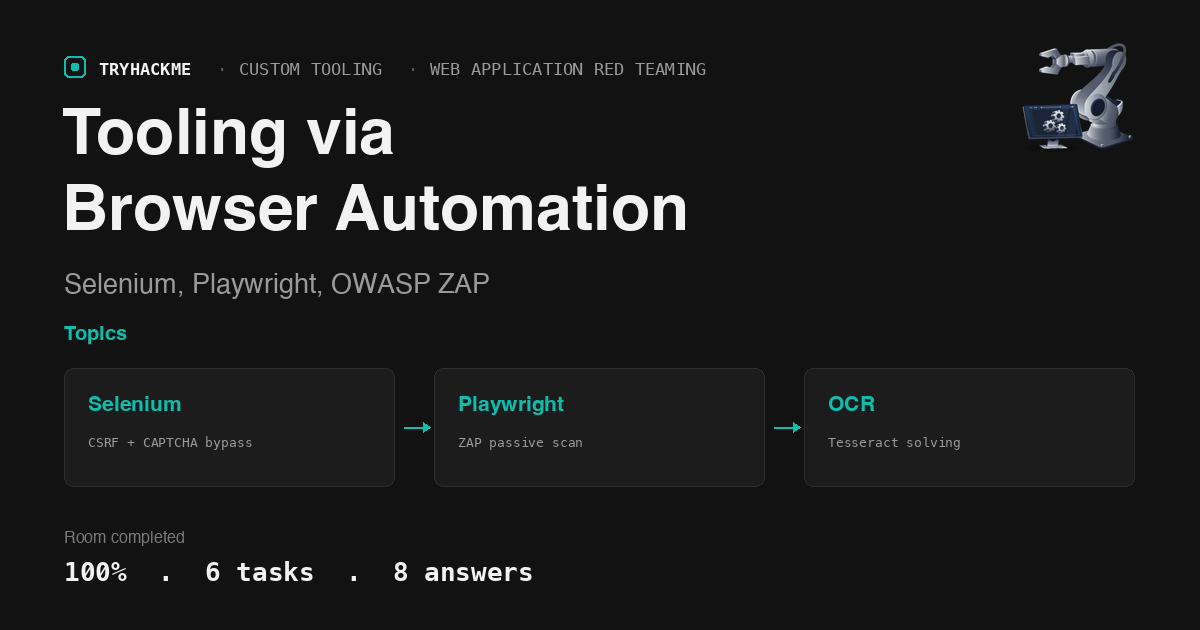
This easy-difficulty room in the Custom Tooling module of the Web Application Red Teaming path covers browser automation for security testing using Selenium and Playwright. Where the sibling rooms (Custom Tooling Using Python and Custom Tooling using Burp) intercept and replicate cryptographic logic, this room lets the browser handle it: Selenium drives a real browser through login forms, CSRF tokens, and CAPTCHAs, while Playwright integrates with OWASP ZAP for automated vulnerability scanning and reporting.
Task 1: Introduction
Setup task. The room deploys two VMs simultaneously: a Selenium/VNC lab machine with pre-installed Python scripts, and a target web application VM from a companion room. The lab machine runs Ubuntu with Firefox, Selenium, Tesseract OCR, and OWASP ZAP pre-configured. The target VM hosts three web applications on different ports: a CSRF-protected login form, a CAPTCHA-protected login form, and a Personalised Greeting app used for vulnerability scanning.
Answers
- I am ready to learn how to leverage browser automation! No answer needed.
Task 2: Browser automation tools compared
The task explains why browser automation is valuable for red teaming: instead of reverse-engineering client-side encryption and replicating it in a proxy plugin (as the Burp room required), you let the browser execute the JavaScript natively. The automation script interacts with form fields, buttons, and page elements exactly as a real user would, and the browser handles all encryption, CSRF token extraction, and DOM manipulation transparently.
The comparison table covers six tools:
| Tool | Language Support | Key Strength | Limitation |
|---|---|---|---|
| Playwright | Python, Java, C#, JS | Fast, multi-browser out of the box | Steeper learning curve |
| Selenium | Python, Java, C#, JS | Large community, all major browsers | Slower, complex setup |
| Puppeteer | JavaScript | Tight Chrome integration | Chrome-only (officially) |
| Pyppeteer | Python only | Python port of Puppeteer | Smaller community, Chrome-focused |
| Power Automate | Low-code/no-code | GUI-level automation, simulates real user | Windows-only, limited scripting |
| Cypress | JavaScript | Real-time reloading, fast test feedback | Chrome-family only, no multi-tab |
Pyppeteer is the only tool restricted to Python. Power Automate uses GUI-level automation (mouse and keyboard simulation) rather than browser API calls, which makes it the most realistic but least scriptable option.
Answers
- Which browser automation tool only has language support for Python? Pyppeteer
- Which browser automation tool uses GUI-level automation to simulate realistic user interactions? Power Automate
Task 3: Selenium CSRF bypass and brute-force
The login form
The target application at port 80 presents a login form for user admin with a 4-digit PIN. The form includes a hidden CSRF token that rotates on every page load. A raw HTTP brute-force (curl, requests, Hydra) would need to fetch a new CSRF token before each attempt, parse it from the HTML, and include it in the POST body. Selenium sidesteps all of this: it loads the page in a real browser, reads the CSRF token from the DOM, fills the form fields, and clicks Submit. The browser handles cookies and session state automatically.
The script (lab1.py)
The pre-installed lab1.py script uses selenium_stealth to make the automated Firefox instance look like a regular browser (randomized user-agent, WebGL vendor, platform). The brute-force loop:
- Navigates to the login page
- Reads the CSRF token from the hidden input via
find_element(By.NAME, 'csrf_token').get_attribute('value') - Clears and fills the username and password fields
- Clicks the Submit button
- Checks whether the response page contains a success indicator
The script iterates PINs from 0000 to 9999. On success, the flag is displayed on the authenticated page.
Answers
- What is the flag? THM{Csrf_bypass_using_automation}
Task 4: Selenium with Tesseract OCR for CAPTCHA bypass
Adding CAPTCHA to the chain
The second application adds a CAPTCHA image to the CSRF-protected login form. Each page load generates a new CAPTCHA (5 alphanumeric characters, black on white), a new CSRF token, and a new session-bound CAPTCHA answer. A brute-force tool must solve the CAPTCHA for every single login attempt.
The script (lab2.py)
The pre-installed lab2.py extends the CSRF bypass with an OCR step:
- Navigates to the login page (new CSRF + new CAPTCHA)
- Locates the CAPTCHA
<img>element and takes a Selenium screenshot of just that element - Preprocesses the image with Pillow (grayscale conversion, thresholding) to improve OCR accuracy
- Runs Tesseract OCR with
--psm 7(single text line) and a character whitelist (ABCDEFGHIJKLMNOPQRSTUVWXYZ0123456789) - Fills the CSRF token, username, password, and OCR result into the form
- Submits and checks the result
The Pillow preprocessing step is critical: the raw CAPTCHA image has light gray text that Tesseract misreads. Converting to grayscale and applying a binary threshold (pixel > 128 becomes white, otherwise black) produces clean black-on-white text that Tesseract handles reliably.
On an OCR failure (the server returns “CAPTCHA incorrect”), the script retries with a fresh page load rather than moving to the next password, since the CAPTCHA, not the password, was wrong.
Answers
- What is the flag? THM{Captcha_bypass_using_automation}
Task 5: Playwright with OWASP ZAP for vulnerability scanning
The setup
This task switches from Selenium to Playwright and introduces OWASP ZAP as a passive vulnerability scanner. The target is a Personalised Greeting web app that reflects user input (a name) in the page. The script play.py launches a headless Firefox instance through ZAP’s HTTP proxy, injects XSS payloads into the greeting app, and lets ZAP’s passive scanner analyze every request and response flowing through it.
The script (play.py)
The execute_automation function orchestrates the scan:
- Creates a fresh ZAP session via
zap.core.new_session() - Launches Firefox headless through ZAP’s proxy (
http://127.0.0.1:8080) - Visits
TARGET_URL?name=<payload>for four XSS payloads:<script>alert('XSS')</script><img src=x onerror=alert('XSS')><svg/onload=alert('XSS')>"><script>alert('XSS')</script>
- Registers a dialog handler (
page.once("dialog", ...)) to dismiss anyalert()popups triggered by reflected XSS - Waits for ZAP’s passive scan queue to drain (
zap.pscan.records_to_scan == 0) - Generates a PDF report using ZAP’s traditional-pdf template, saved as
zap_scan_report.pdfon the Desktop
The report
The ZAP passive scanner identifies 2 medium-level vulnerabilities in the greeting application:
- Content Security Policy (CSP) Header Not Set: the Flask server does not send a
Content-Security-Policyheader, allowing unrestricted script execution (which is exactly what makes the reflected XSS payloads work) - Missing Anti-clickjacking Header: no
X-Frame-Optionsorframe-ancestorsCSP directive, so the page can be embedded in an iframe for clickjacking
These are header-level misconfigurations, not application logic bugs. The passive scanner detects them by inspecting response headers without sending any additional requests beyond the four XSS payload visits. The XSS payloads themselves are the vehicle that drives traffic through ZAP, not the finding.
Answers
- Per the report, how many medium-level vulnerabilities have been identified by the script? 2
- What is the function’s name ensuring browser automation and injecting the payloads individually? execute_automation
Task 6: Conclusion
The room concludes with the key takeaway: browser automation tools let you interact with web applications at the same level as a real user, bypassing client-side controls (CSRF tokens, CAPTCHAs, JavaScript encryption) without reverse-engineering them. Combined with tools like OWASP ZAP, they also automate vulnerability discovery and reporting. Selenium covers form-driven testing with its mature ecosystem; Playwright adds speed, multi-browser support, and tighter integration with security tools.
Answers
- I have completed the room successfully. No answer needed.
Takeaways
Browser automation eliminates the need to reverse-engineer client-side cryptography, but it introduces a different engineering challenge: synchronization. The Burp room required understanding AES-CBC, ROT13, and RSA signing to build extensions that replicate the encryption chain. This room requires none of that: the browser runs the JavaScript, and the automation script just fills fields and clicks buttons. But the script must wait for the right DOM state (the CSRF token must be present before reading it, the CAPTCHA image must be fully loaded before screenshotting it, the success/failure message must appear before checking it). In Selenium this means explicit waits and element-presence checks; in Playwright it means page.wait_for_selector() and dialog handlers. A race condition between the script and the browser is harder to debug than a wrong encryption key, because it fails intermittently rather than consistently.
A passive vulnerability scanner produces findings proportional to the traffic you drive through it, not proportional to the attack surface. The ZAP scan in Task 5 found only header-level issues (missing CSP, missing X-Frame-Options) because the passive scanner inspects responses to requests that already happened. It does not crawl, it does not fuzz, and it does not send its own payloads. The four XSS GET requests generated four HTTP responses, and the passive scanner checked each one for common header and body issues. An active scan (which ZAP also supports, but the script does not use) would have sent its own payloads, tested for SQL injection, path traversal, and other server-side vulnerabilities, and likely produced a larger finding set. The distinction matters: a passive-only ZAP report is a floor, not a ceiling, and reporting it as a complete vulnerability assessment would undercount the real risk.
Room solved 100%: 6 tasks, 8 answers.