Exchange Online Monitoring
Third room in the Microsoft 365 for SOC module, after M365 Monitoring Basics and Entra ID Monitoring. Those covered identity; this one narrows to the mailbox, what an attacker does inside Exchange Online once they are already in, and how each action lands in the logs.
Seven tasks, sixteen graded answers, all solved 100%. Two indexes: task4_5 for the guided exercises and task6 for the unguided investigation, plus a sourcetype the earlier rooms did not have:
index=* | stats count by index, sourcetype
#   task4_5   azure:aad:signin              113
#   task4_5   o365:management:activity        99
#   task4_5   o365:reporting:messagetrace      9
#   task6     azure:aad:signin               56
#   task6     o365:management:activity      120
#   task6     o365:reporting:messagetrace    12

Message trace is the addition worth noting. The unified audit log tells you an email was sent; message trace tells you who received it, from which IP, and whether it was delivered. Several answers here are only available from one of those two, which is the room’s real point.
Tasks 2 and 3: vocabulary
Three knowledge answers. Sending phishing from a compromised account to other employees is Lateral Movement, the same term as on-premises, applied to mailboxes rather than hosts.
The appDisplayName that confirms a user reached their mailbox is One Outlook Web, which you can verify against the data rather than trusting the text:
index=* sourcetype=azure:aad:signin | stats count by appDisplayName | sort -count
#   OfficeHome 55 | Azure Portal 40 | One Outlook Web 36 | ...
And the Exchange Online feature abused to automatically delete replies to phishing is New-InboxRule. Note the question says “feature”, which nudges you toward answering inbox rules, the underscore mask is what settles it at 13 characters, and hyphens are masked as underscores too, so New-InboxRule fits exactly while Inbox rules does not.
Task 4: two rules, and mailbox-level forwarding
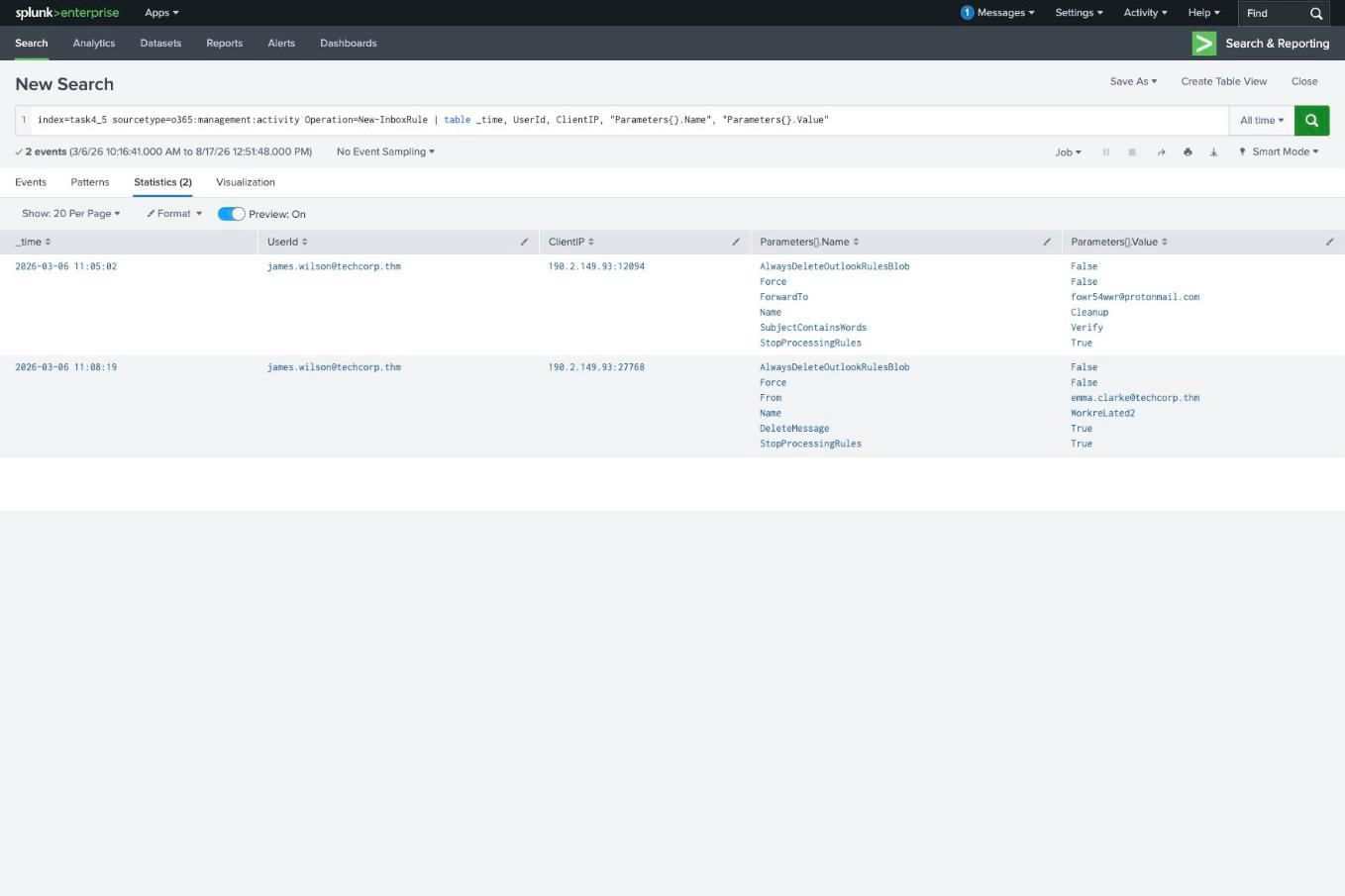
Everything the attacker did to james.wilson’s mailbox is in two audit events:
index=task4_5 sourcetype=o365:management:activity Operation=New-InboxRule
| table _time, UserId, ClientIP, "Parameters{}.Name", "Parameters{}.Value"
| Time | Rule name | Parameters |
|---|---|---|
| 11:05:02 | Cleanup | ForwardTo: [email protected], SubjectContainsWords: Verify, StopProcessingRules: True |
| 11:08:19 | WorkreLated2 | From: [email protected], DeleteMessage: True |
So the rule forwarding to an external address is Cleanup, and the subject word it triggers on is Verify.
Those parameter names are the whole story. Cleanup quietly copies anything with “Verify” in the subject to a Protonmail address, and as you will see in Task 5, “Verify” is exactly the word in the phishing subject the attacker is about to send, so the rule is pre-positioned to capture the replies. WorkreLated2 outright deletes anything from one specific colleague, and the deliberately odd capitalisation is the sort of thing a human types when they are not expecting anyone to read it.
Mailbox-level forwarding is separate from rules and needs its own query:
index=task4_5 sourcetype=o365:management:activity Operation=Set-Mailbox NOT UserId="NT SERVICE*"
#   11:06:56  ForwardingSmtpAddress: smtp:[email protected]  DeliverToMailboxAndForward: True
The address is [email protected], a different Protonmail account from the one in the rule, so the attacker set up two independent exfiltration paths four minutes apart. Note the NOT UserId="NT SERVICE*" filter: Set-Mailbox fires constantly from MSExchangeAdminApiNetCore as ordinary service noise, and without excluding it the real event is buried.
Task 5: message trace finds the phishing
The scenario tells you all employees work from one office network, which turns a single stats into the entire detection:
index=task4_5 sourcetype=o365:reporting:messagetrace
| stats count, dc(RecipientAddress) as colleagues, values(RecipientAddress) as recipients
  by FromIP, SenderAddress, Subject | sort -count
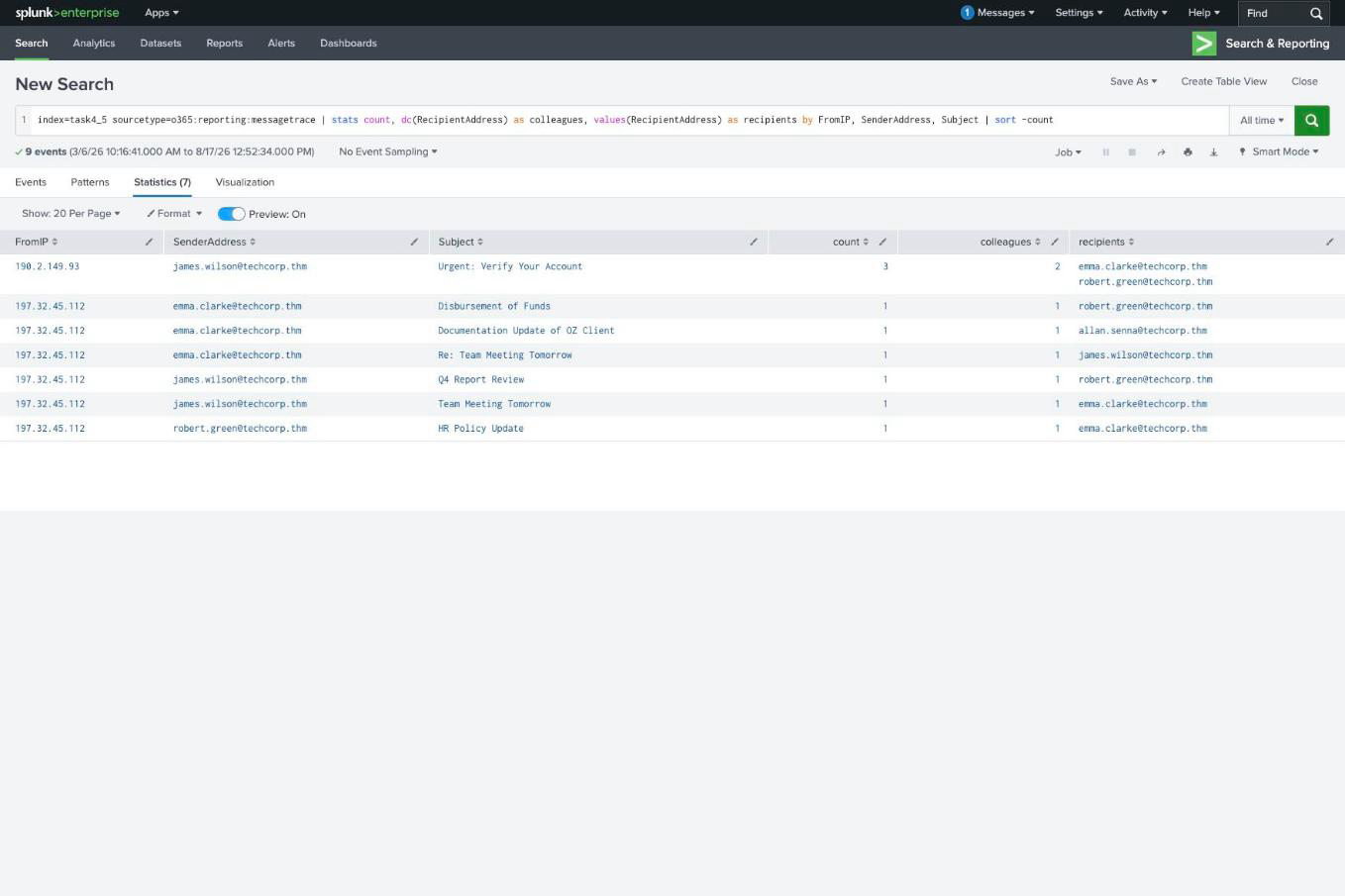
Every legitimate message comes from 197.32.45.112. One row does not:
| FromIP | Sender | Subject | Count | Colleagues |
|---|---|---|---|---|
| 190.2.149.93 | james.wilson | Urgent: Verify Your Account | 3 | 2 |
| 197.32.45.112 | (various) | Q4 Report Review, HR Policy Update, … | 1 each | 1 each |
The subject is Urgent: Verify Your Account, sent from 190.2.149.93, the same address that created the inbox rules, and 2 colleagues received it.
That recipient count is the one place to be careful. There are three message trace rows but only two distinct recipients: robert.green appears twice, emma.clarke once. The question asks how many colleagues received it, so the answer is the distinct count, not the row count. dc(RecipientAddress) gives it directly; count would mislead you.
And now the two halves connect: the phishing subject contains Verify, which is precisely the word the Cleanup rule watches for. Anyone who replies has their reply silently copied to Protonmail and, because StopProcessingRules is set, handled before any other rule sees it.
Task 6: the unguided investigation
New index, no hand-holding, six questions. The office-network trick works again as the opening move:
index=task6 sourcetype=azure:aad:signin
| stats count, values(action) as acts by userPrincipalName, ipAddress, "location.city", "location.countryOrRegion"
#   robert.green    197.32.45.112     Karachi  PK  21  success
#   emma.clarke     197.32.45.112     Karachi  PK  12  failure,success
#   robert.green    217.138.209.30    Ursynow  PL  12  failure,success
#   james.wilson    197.32.45.112     Karachi  PK  11  failure,success
The office is Karachi. The one row that is not is robert.green from Ursynow, PL, so the malicious login came from Ursynow.
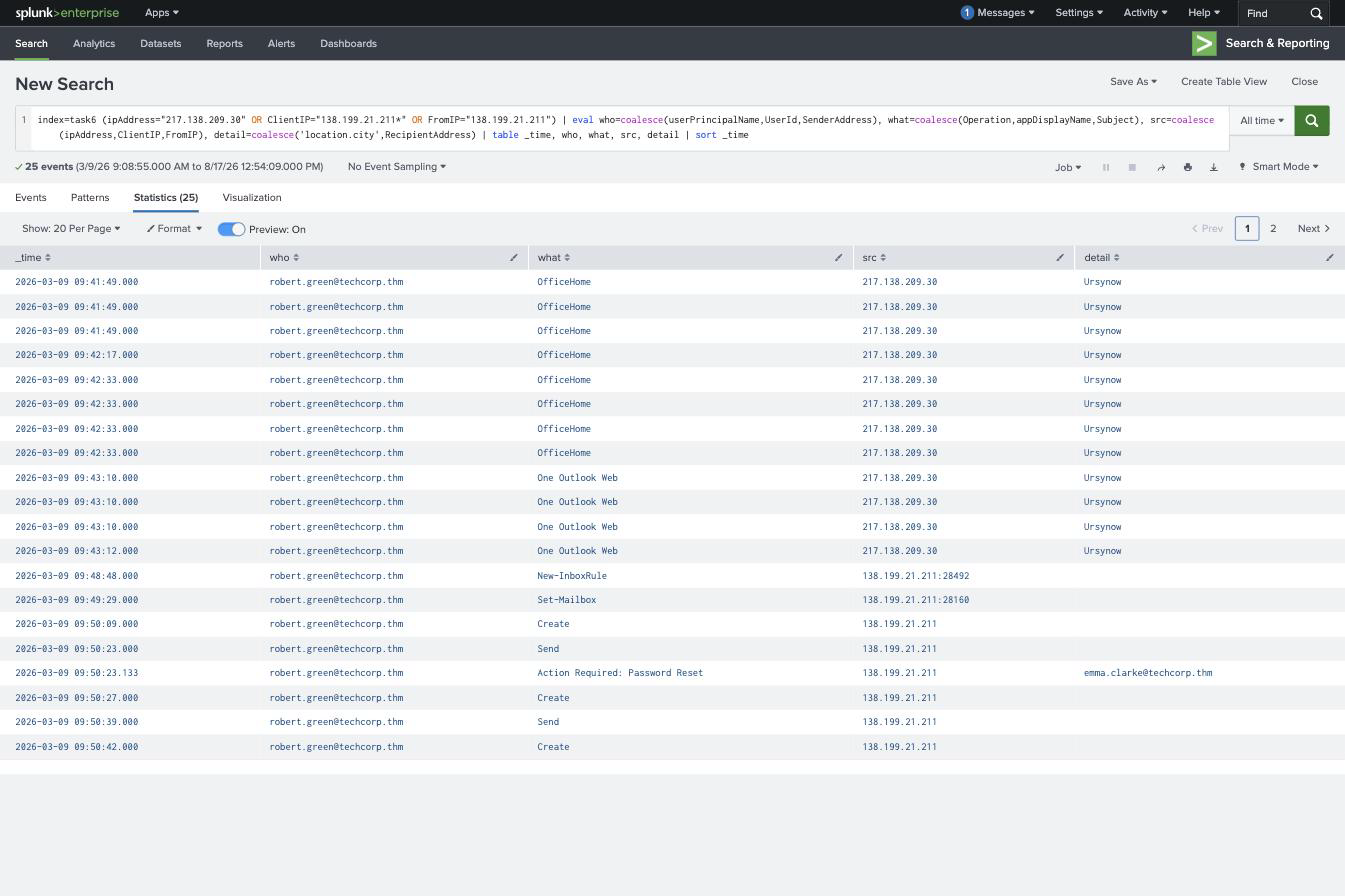
From there, filtering everything in the index down to the attacker’s two addresses gives the whole intrusion on one screen:
| Time | Action | Source |
|---|---|---|
| 09:41-09:43 | OfficeHome, then One Outlook Web sign-ins | 217.138.209.30 (Ursynow) |
| 09:48:48 | New-InboxRule, name Maintenance, SubjectContainsWords: Alert, DeleteMessage: True | 138.199.21.211 |
| 09:49:29 | Set-Mailbox, ForwardingSmtpAddress: smtp:[email protected] | 138.199.21.211 |
| 09:50-09:51 | Create + Send ×3, Action Required: Password Reset | 138.199.21.211 |
| 09:53:24 | Re: Action Required: Password Reset from emma.clarke | 197.32.45.112 |
So the rule is Maintenance, the forwarding address is [email protected], the phishing subject is Action Required: Password Reset, the sending IP is 138.199.21.211, and the colleague who replied is [email protected].
The detail that catches people is that there are two attacker IPs, not one. The interactive sign-in came from 217.138.209.30 (Ursynow) while every mailbox action and every phishing send came from 138.199.21.211. Both are commercial VPN space, and the question specifically asks which address sent the phishing emails, so answering with the login IP is wrong even though it is unambiguously the attacker. Reading which log source a question refers to matters as much as finding the anomaly.
Three colleagues were targeted, emma.clarke, allan.senna, adrian.mercer, and exactly one replied, at 09:53:24 from the office network. That reply is the moment the compromise starts spreading.
Task 7: what carries over
The most reusable idea here is that a known-good baseline turns a whole investigation into one stats command. “All employees work from the same office network” is a single sentence in the scenario, and it converts both Task 5 and Task 6 into “group by source IP and read the row that doesn’t belong”. In a real tenant that baseline is your egress ranges or your VPN concentrators, and building it before an incident is what makes this cheap during one.
The second is that mailbox rules and mailbox forwarding are separate mechanisms and need separate queries. New-InboxRule and Set-Mailbox are different operations, they were used four minutes apart here to two different external addresses, and hunting one while ignoring the other leaves half the exfiltration path in place. A remediation that deletes the rule and stops there is not a remediation.
One last thing worth stealing for real work: the attacker’s rules keyed on words they controlled, Verify in Task 4, Alert in Task 6, because they knew what subject line they were about to send. A rule whose SubjectContainsWords matches a subject that appears in outbound mail minutes later is about as clean a correlation as this kind of abuse produces.
Room solved 100%: seven tasks, sixteen answers.