| Follow @anir0y | |
|---|---|
| Intro to Docker |  |
Intro to Docker is the easy opening room of the Container Security module in the DevSecOps path. It sits next to the pipeline rooms I already wrote up, DevSecOps Basics and CI/CD and Build Security, and it is the groundwork for everything that follows in the module: before you can attack or harden a container, you need to know how images, containers, Dockerfiles and Compose fit together.
Six of the seven tasks are reading plus command-syntax questions, answerable straight from the task text. Task 7 gives you a lab machine with Docker installed, where you find a running container and start a webserver container that serves the flag.
Task 1: Introduction
No answer needed. The room lists what it covers (basic syntax, running containers, building images with a Dockerfile, Docker Compose, and the Docker socket) and recommends some Linux comfort first.
Task 2: Managing images with pull and image ls
Docker images are the instructions a container is built from, and they live in a registry (Docker Hub by default). You fetch one with docker pull, optionally pinned to a tag:
  # fetch the latest tag of an image
  docker pull tryhackme
  # fetch a specific tag
  docker pull tryhackme:1337
  # list the images on this host
  docker image ls
- Pulling an image:
docker pull - Listing all images:
docker image ls - Pulling the
tryhackmeimage:docker pull tryhackme - Pulling
tryhackmewith tag1337:docker pull tryhackme:1337
If you omit the tag, Docker silently assumes latest, which is worth remembering when an image behaves differently from the one you tested.
Task 3: Running containers with -it, -d and -p
docker run takes options before the image name. The three the room focuses on:
  # interactive: attach a TTY and keep stdin open
  docker run -it helloworld /bin/bash
  # detached: run in the background
  docker run -d helloworld
  # publish container port 80 on host port 80
  docker run -p 80:80 webserver
  # running containers, then all containers including stopped ones
  docker ps
  docker ps -a
- Run interactively:
docker run -it - Run detached:
docker run -d - Bind a webserver on port 80:
docker run -p 80:80 - List running containers:
docker ps - List all containers, including stopped:
docker ps -a
The -p syntax is host:container. Mixing those up is the most common reason a container looks healthy but nothing answers on the port you expect.
Task 4: Dockerfiles with FROM, RUN and build -t
A Dockerfile is a recipe of instructions, executed top to bottom, that produces an image. The room walks through FROM, RUN, COPY, WORKDIR, EXPOSE and CMD; put together, a minimal Apache image looks like this:
  # base image
  FROM ubuntu:22.04
  # commands executed at build time
  RUN apt-get update -y && apt-get install apache2 -y
  EXPOSE 80
  CMD ["apache2ctl", "-D", "FOREGROUND"]
  # build an image from the Dockerfile in this directory and name it
  docker build -t webserver .
- Instruction for the base image:
FROM - Instruction to run a command:
RUN - Docker command to build an image:
build - Argument to name the image:
-t
The room’s optimisation section makes the point that every RUN creates a new layer, so chaining commands with && keeps images smaller. My own addition, because it matters for the rest of the module: a secret added in one layer and deleted in the next is still recoverable from the image history.
Task 5: Docker Compose up and down
Compose lets you describe several containers, their networks and ports in one file and manage them as a unit. The example pairs a web app with a database so the two can talk over a shared network.
  # create and start every service in the file
  docker-compose up
  # stop and remove them again
  docker-compose down
- Argument to start the series of containers:
up - Argument to delete them:
down - File Compose reads:
docker-compose.yml
Task 6: The Docker socket and the client/server model
Docker is two programs: the client you type into, and the server (the daemon) that does the work. They talk over a socket, which is a form of Interprocess Communication (IPC). The Docker server is effectively an API: the client sends requests, the daemon listens and acts on them.
That detail is why this task matters for security. The socket at /var/run/docker.sock is a root-equivalent control channel, because anything that can write to it can ask the daemon to start a privileged container with the host filesystem mounted. A container that has the socket mounted into it is one docker run away from the host, which is exactly the kind of escape the later rooms in the Container Security module explore.
Task 7: Practical, finding the running container and serving the flag
Start Lab Machine boots an Ubuntu VM with Docker, shown in split view as the cmnatic user. The first question asks for the running container, so docker ps:
  cmnatic@thm-intro-to-docker:~$ docker ps
  CONTAINER ID   IMAGE         COMMAND               CREATED       STATUS         PORTS   NAMES
  0f24bed8b5ef   cloudisland   "tail -f /dev/null"   4 years ago   Up 4 minutes           CloudIsland

The running container is CloudIsland. Note the casing: the image is cloudisland, but the question asks for the container name in the NAMES column, which is CloudIsland.
The second question wants a webserver started from the local webserver image, published on port 80. That is the Task 3 command put together:
  cmnatic@thm-intro-to-docker:~$ docker run -d -p 80:80 webserver
  6fee708106a06764bb585434fca3def11e10a12e5882b2031ce7f142170f8298
  cmnatic@thm-intro-to-docker:~$ docker ps
  CONTAINER ID   IMAGE         COMMAND                  CREATED         STATUS         PORTS                               NAMES
  6fee708106a0   webserver     "apache2ctl -D FOREG…"   6 seconds ago   Up 4 seconds   0.0.0.0:80->80/tcp, :::80->80/tcp   sweet_leavitt
  0f24bed8b5ef   cloudisland   "tail -f /dev/null"      4 years ago     Up 5 minutes                                       CloudIsland
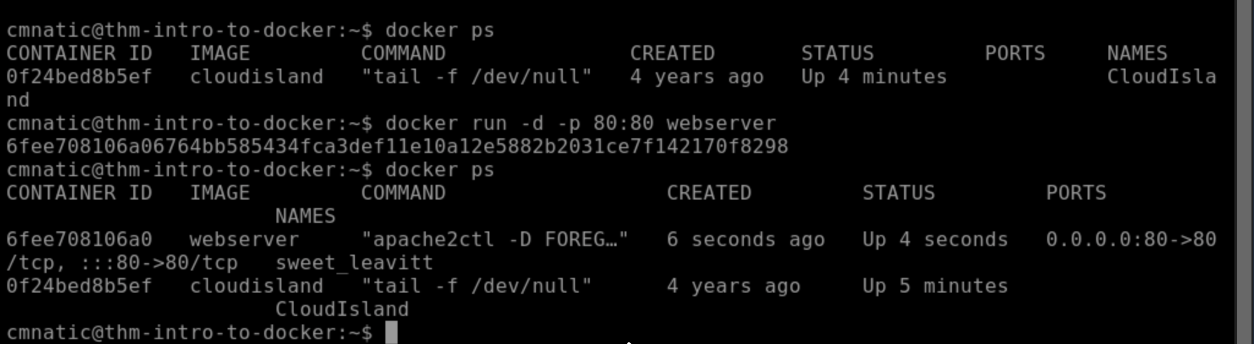
Docker gave the new container a random name (sweet_leavitt) because I did not pass --name. With port 80 published, the VM’s web root answers. I checked it from my own machine over the THM VPN first (curl -s http://<lab-ip>/) and then in the browser through the room’s reverse-proxy link:

Flag: THM{WEBSERVER_CONTAINER}
One honest note on submitting: setting the answer boxes from a script does not register with this room’s answer form, so the answers had to be typed in. If a correct answer comes back as not registered, retype it rather than assuming it is wrong.
Two takeaways
First, -p host:container is the whole networking story for a single container. Nothing inside a container is reachable from outside until you publish it, and the left side of the colon is the host. When a service is “up but unreachable”, check the PORTS column of docker ps before anything else.
Second, the Docker socket is the security boundary, not the container. The daemon runs as root and does whatever the socket asks, so access to /var/run/docker.sock (or membership of the docker group) is effectively root on the host. Treat a mounted socket in any container as a finding in its own right.
Room solved 100%: 7 tasks, 21 answers.