Microsoft Intune Monitoring
Fifth and final room in the Microsoft 365 for SOC module, after M365 Monitoring Basics, Entra ID Monitoring, Exchange Online Monitoring and SharePoint Online Monitoring. This is the room that carries the module badge, and it is the one where the platform stops being a place attackers read things and becomes a place they do things, Intune manages the endpoints, so an admin session in the Intune console is code execution and data destruction wearing a management console.
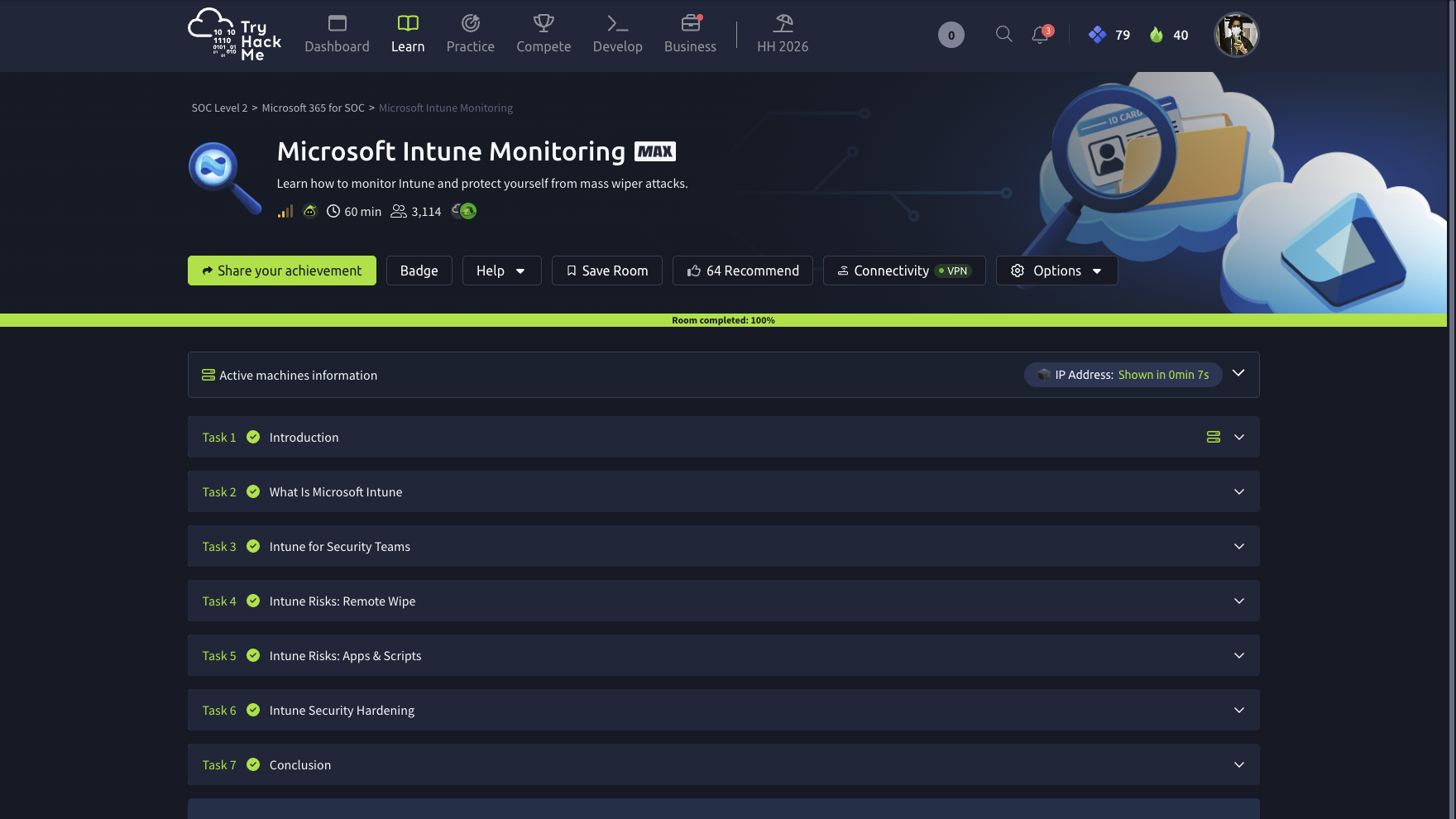
Seven tasks, fourteen answers, all solved 100%.
One index, and a sourcetype the module has not shown before:
index=* | stats count by index, sourcetype
#   intune   azure:aad:signin             36
#   intune   custom:intune:winexecutor    21
#   intune   azure:aad:audit              11
#   intune   o365:graph:intune             5
73 events total. o365:graph:intune is the Intune audit log, and custom:intune:winexecutor is AgentExecutor.log lifted off an actual endpoint, the first time in this module that a log comes from a managed device rather than from a cloud service. That split is the whole room: the cloud tells you what was ordered, the endpoint tells you what was run.
Standing advice, unchanged: All time on the picker. Data is 17 March 2026.
Tasks 2 and 3: four definitions
Intune is a cloud-based MDM, there is no on-premises Intune to stand up, which is the point and also the risk, because the console is reachable from anywhere with a valid session. The identity platform it integrates with is Entra ID, and that integration is why so much of this investigation happens in azure:aad:signin rather than in Intune’s own logs.
On the detection side, the feature that gates access based on conditions is Conditional Access, the same control that blocked a sign-in in Entra ID Monitoring. And the sign-in log field that tells you whether a device is managed is deviceDetail, the object carrying deviceId, displayName, isCompliant and isManaged. Keep that field name; it is load-bearing in Task 4.
Task 4: a remote wipe, and the IP that isn’t in the wipe event
The room frames this on a real incident it links to BleepingComputer: in March 2026, attackers with a single compromised M365 admin account allegedly issued an Intune bulk wipe across roughly 80,000 enrolled devices. No malware, no exploit, Devices > Bulk device action > Wipe.
The room also makes a point I had not thought about and immediately liked: there is no value in a “Mass Device Wipe via Intune” SIEM rule, because there is no documented way to abort an Intune wipe command. By the time an analyst opens the alert the devices are already at factory settings. Everything useful therefore happens before the wipe, at the login.
The Intune audit log has all five of its events in one table:
index=intune sourcetype=o365:graph:intune
| eval t=strftime(_time,"%F %H:%M:%S")
| table t, activityType, "actor.userPrincipalName", "resources{}.resourceId" | sort t
#   18:57:16  deleteDeviceManagementScript   steven.mills  c0709410-f1e0-4619-ac73-eca347ca1b8b
#   18:57:56  createDeviceManagementScript   steven.mills  24db5bd7-571b-468e-8def-b20a01b2bf0a
#   18:57:57  assignDeviceManagementScript   steven.mills  24db5bd7-571b-468e-8def-b20a01b2bf0a
#   19:07:41  Create ClientCertificate       steven.mills  (device enrolment)
#   19:21:45  wipe ManagedDevice             steven.mills  093993d9-ca64-4951-8454-bed6d5175353
So the wipe is wipe ManagedDevice at 19:21:45, and the Entra audit log confirms the fallout twenty-one seconds of clock later:
index=intune sourcetype=azure:aad:audit
| eval t=strftime(_time,"%H:%M:%S") | stats values(t) as times by activityDisplayName
#   19:07:08  Add device / Register device / Add registered owner / Add registered users   LPT-08312
#   19:10:12  Add Windows Hello for Business credential
#   19:21:46  Device no longer compliant
#   19:21:46  Device no longer managed
Register device at 19:07:08 names the host: LPT-08312. That is the hostname answer, and it is also the join key for everything else.
Now the two traps, and I hit both.
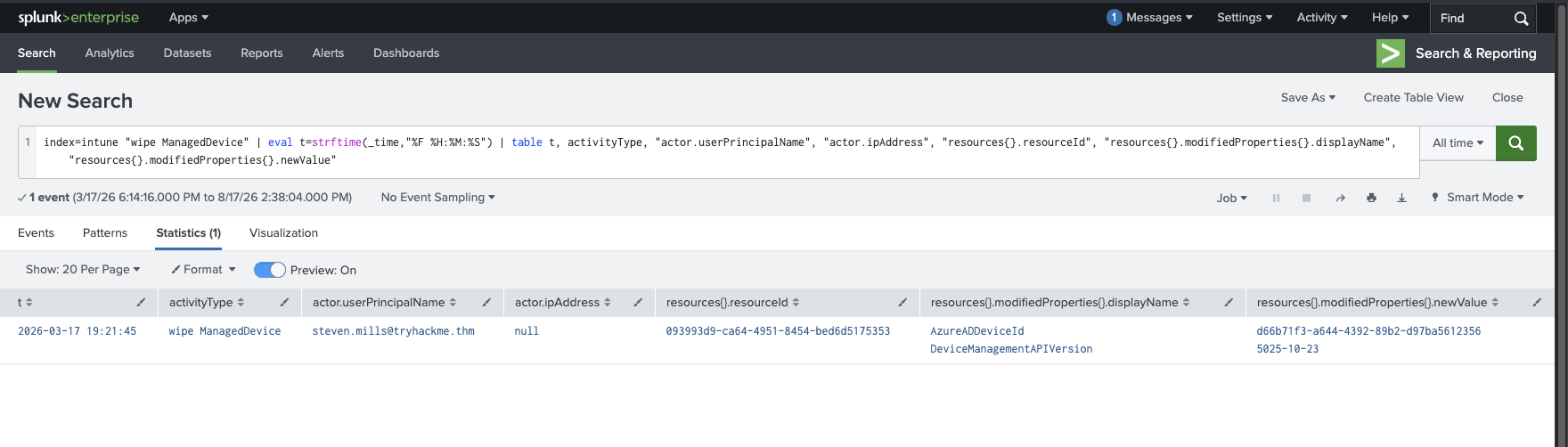
Trap one: one laptop, three GUIDs. The wipe event’s resources{}.resourceId is 093993d9-ca64-4951-8454-bed6d5175353. That is the Intune managedDevice id, it is the obvious thing to grab, and the room rejects it. The graded device ID lives one level deeper, in the same event’s modifiedProperties:
index=intune "wipe ManagedDevice"
| table "resources{}.modifiedProperties{}.displayName", "resources{}.modifiedProperties{}.newValue"
#   AzureADDeviceId              d66b71f3-a644-4392-89b2-d97ba5612356
#   DeviceManagementAPIVersion   5025-10-23
d66b71f3-a644-4392-89b2-d97ba5612356 is the answer, and it is the same value that appears as deviceDetail.deviceId in the sign-in log next to deviceDetail.displayName: LPT-08312, which is exactly why Task 3 made you learn the field name. There is also a third GUID for the same machine, 52820991-68dc-49b7-ba0b-bef82002b2a0, sitting in targetResources{}.id in the Entra audit events. Intune managedDevice id, Entra device id, Entra directory object id: three identifiers, one laptop, and the log you happen to be reading decides which one you get handed.
Trap two: the wipe event has no source IP. actor.ipAddress on every o365:graph:intune event is null. The Intune audit log records who and what, never from where. So the answer has to come from Entra:
index=intune sourcetype=azure:aad:signin
| stats count, values(appDisplayName) as apps, min(_time) as f, max(_time) as l
  by userPrincipalName, ipAddress, "location.city", "location.countryOrRegion"
| eval first=strftime(f,"%F %H:%M:%S"), last=strftime(l,"%H:%M:%S") | fields - f,l | sort -count
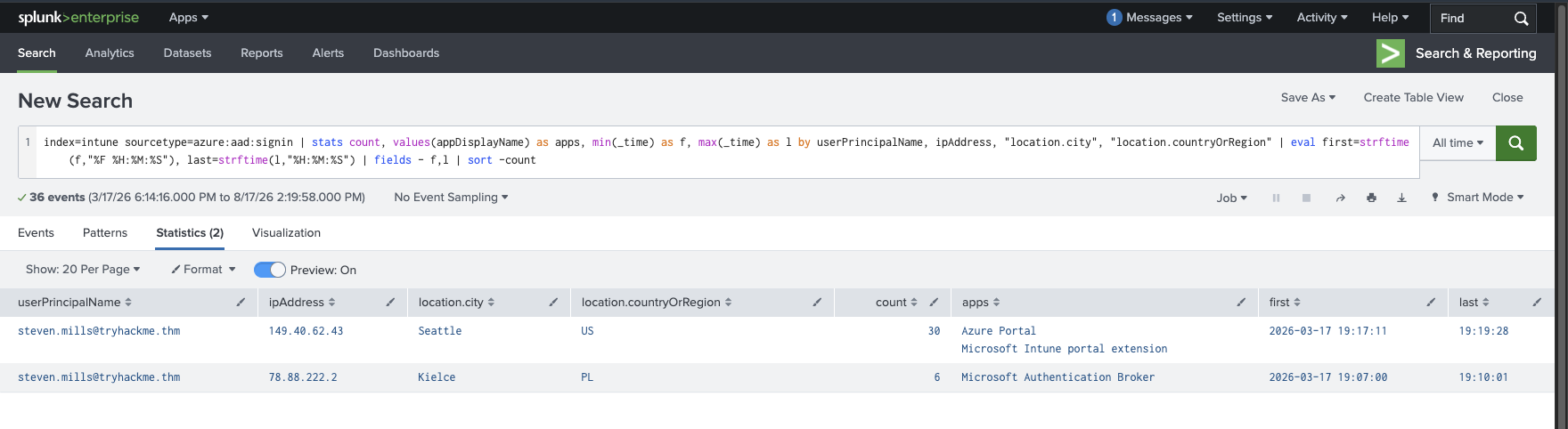
| User | IP | City | Count | Apps | Window |
|---|---|---|---|---|---|
| steven.mills | 149.40.62.43 | Seattle, US | 30 | Azure Portal, Microsoft Intune portal extension | 19:17:11 → 19:19:28 |
| steven.mills | 78.88.222.2 | Kielce, PL | 6 | Microsoft Authentication Broker | 19:07:00 → 19:10:01 |
The wipe came from 149.40.62.43.
This is where the room quietly breaks the module’s pattern, and it is worth saying out loud because I went looking for the wrong thing first. The previous four rooms all handed you a baseline and asked you to find the row that did not fit. Here both rows are the same account and neither one is anomalous. The Kielce traffic is Microsoft Authentication Broker at 19:07-19:10, which is LPT-08312 enrolling itself and registering Windows Hello. The Seattle traffic is Azure Portal plus Microsoft Intune portal extension at 19:17-19:19, which is console work. You separate them by which application the session used, not by geography, and the room tells you the field to key on: every Intune console login shows up with appDisplayName = Microsoft Intune portal extension.
Which is also the practical detection. You cannot alert on the wipe, and you cannot alert on a country when your admins travel. You can alert on Microsoft Intune portal extension sign-ins from an unmanaged device, an unexpected address, or outside working hours, because there is no legitimate reason for that application to appear in a sign-in log very often.
Task 5: scripts, and a shell as SYSTEM on every assigned device
Same five audit events, different three questions. The deletion at 18:57:16 gives the deleted script’s resourceId directly: c0709410-f1e0-4619-ac73-eca347ca1b8b.
The second question, when the other script was “deployed to the targets”, is an answer-format trap of the useful kind. There are two candidate timestamps one second apart:
18:57:56  createDeviceManagementScript   24db5bd7-571b-468e-8def-b20a01b2bf0a
18:57:57  assignDeviceManagementScript   24db5bd7-571b-468e-8def-b20a01b2bf0a
Creating a script uploads it and does nothing. Assigning it is what points it at devices, so the answer is 2026-03-17 18:57:57. The underscore mask cannot help here, both fit __________ __:__:__, but the wording can: deployed to the targets is the assignment, not the upload.
Then the endpoint side, which is the best part of the room:
index=intune sourcetype=custom:intune:winexecutor
| eval t=strftime(_time,"%H:%M:%S") | table t, _raw | sort t
#   19:24:36  Prepare to run Powershell Script ..
#   19:24:36  PowerShell path is C:\Windows\SysWOW64\WindowsPowerShell\v1.0\powershell.exe
#   19:24:36  cmd line for running powershell is -NoProfile -executionPolicy bypass -file
#             "C:\Program Files (x86)\Microsoft Intune Management Extension\Policies\Scripts\..."
#   19:24:36  [Executor] created powershell with process id 15168
#   19:24:41  Powershell exit code is 0
#   19:24:41  write output done. output = THM{hello_world_from_intune!}, error =
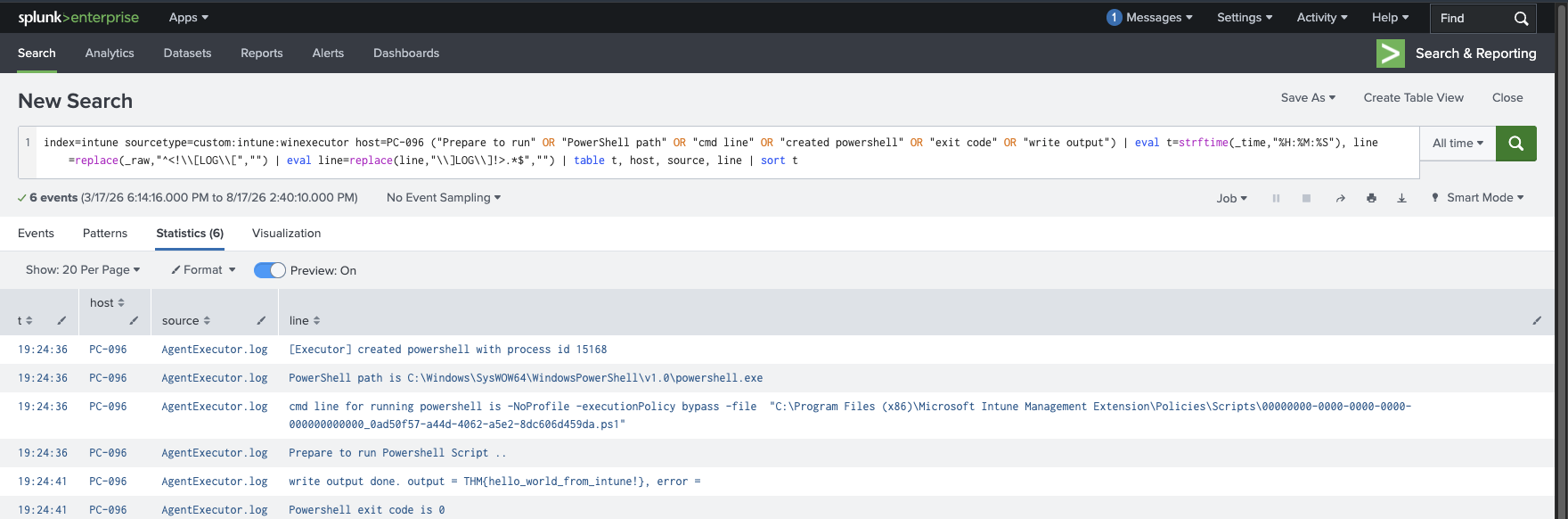
The flag is THM{hello_world_from_intune!}, and everything around it is the lesson. The Intune Management Extension drops the assigned script under C:\Program Files (x86)\Microsoft Intune Management Extension\Policies\Scripts\, launches it with -NoProfile -executionPolicy bypass, and, because the extension is a service, runs it as SYSTEM. An admin holding an Intune role therefore has arbitrary SYSTEM code execution on every device they can assign a script to, without ever touching a credential on the endpoint and without tripping an execution-policy control, because the platform bypasses it by design.
Two timings worth noticing. The script was assigned at 18:57:57 and executed on PC-096 at 19:24:36, twenty-seven minutes later, because devices run assigned scripts on their check-in cycle rather than instantly. And the script was deployed before the wipe at 19:21:45, which on a real incident would matter a great deal: the code went out to the fleet while the fleet was still there.
The other half of the lesson is that AgentExecutor.log records write output done. output = ..., so the script’s stdout is written to a log file on the endpoint. That is convenient here, and a genuine forensic gift generally, but it also means any secret an admin passes through an Intune script lands in plaintext on every device that ran it.
Task 6: the two hardening answers
Given a choice between one shared Intune role for the whole company and multiple focused roles per team or job function, the answer is B. Standard least privilege, but with a sharper edge than usual: the permission being scoped here is wipe every enrolled device, and the room’s framing is that the incident needed exactly one over-privileged account and nothing else.
The feature that requires multiple users to approve a dangerous action is Multi Admin Approval, the 20-character mask resolving neatly to 5 + 5 + 8. MAA is the direct control for what Task 4 described: it puts protected actions such as device wipes and script deployments behind a second administrator’s approval, which turns a single stolen session into a request that somebody else has to sign off on.
That pairing is the honest answer to “how do you stop this”, and it is notable that a monitoring module ends on two controls that are not monitoring at all. When the destructive action completes faster than triage, prevention is the only lever left.
Task 7: what the module leaves you with
Two things from this room.
Intune is a sanctioned code-execution and data-destruction platform, and nothing in this room was an exploit. A bulk wipe, a PowerShell script running as SYSTEM, a script deleted to cover the tracks, all of it is documented product functionality invoked by an account that legitimately held the role. That is why the detection advice collapses to the login and the hardening advice collapses to approval and role scope. There is no malware to find and no signature to write; there is only this admin, at this hour, from this application, doing something that only a handful of people should ever do.
And the module’s baseline trick has a boundary, which this room is where you find it. M365 Monitoring Basics gave you one office IP, Entra ID Monitoring one country, Exchange Online one egress address, SharePoint Online one city, four rooms where stats by source handed you the outlier row. Here the same query returns two rows that both belong to the same legitimate admin, and the discriminator is appDisplayName, not location. Grouping on the wrong dimension produces a clean-looking table with no anomaly in it, which is a far more dangerous outcome than a query that returns nothing. Worth remembering the next time a baseline comes up empty: the question may be which application, not which address.
Room solved 100%: seven tasks, fourteen answers, and the Microsoft 365 for SOC module badge.