Operating Systems: Introduction
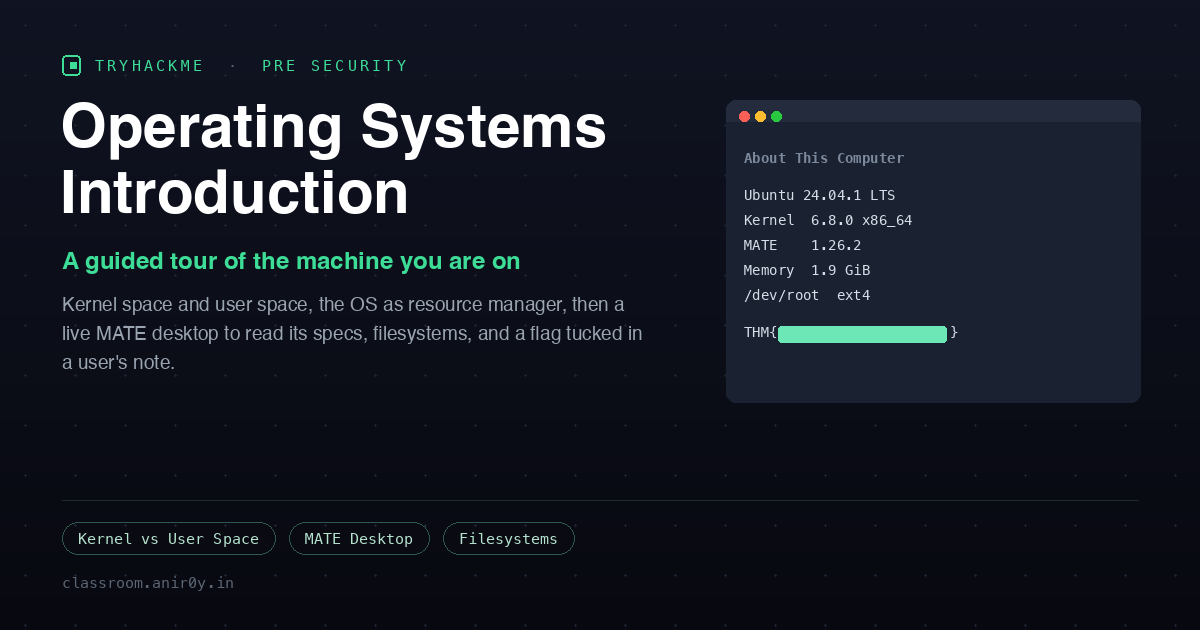
After a run of boot2roots and an AI security detour, this one is a deliberate step back to fundamentals. Operating Systems Introduction sits in TryHackMe’s Pre Security path, and it does something the harder rooms skip over: it makes you look at the machine you are already sitting on and name the parts. Four tasks, mostly reading, and a live Ubuntu MATE desktop you poke at through the browser to answer the questions and find one flag. There is no exploit here. The value is in the vocabulary, because every privilege escalation and every forensic pull later on assumes you already know what kernel space, a filesystem, and a user directory actually are.
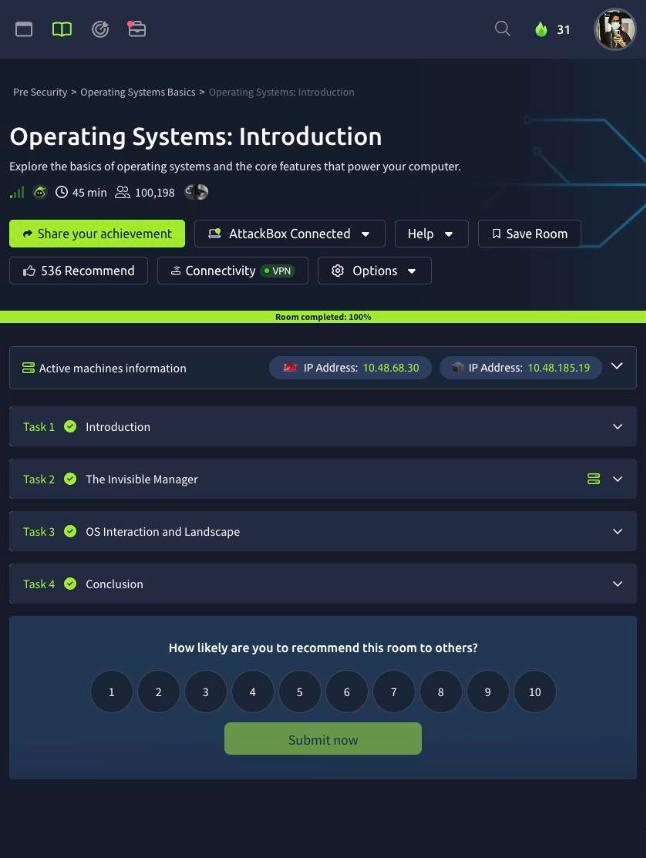
The framing the room uses is that the OS is the manager sitting between your applications and the hardware. You never talk to the CPU, the disk, or the network card directly. You ask the operating system, and it decides who gets what, when, and with which permissions. Everything in the room is a concrete instance of that one idea.
Task 2: The Invisible Manager
The first real task is about that management role, and two of its questions are pure terminology:
- The OS space that has unrestricted, direct access to the hardware is Kernel Space. This is where the kernel lives and where a bug or a compromise is catastrophic, because there is nothing above it to say no.
- The OS responsibility that handles accounts, authentication, and permissions is User Management. Everything else in the room, from who can read a file to which home directory is whose, is downstream of this.
The counterpart to kernel space is user space, where ordinary applications run with limited permissions so a crash or a bad actor stays contained. That boundary between the two is the whole reason a normal user cannot scribble over the kernel, and it is the exact boundary every privilege-escalation exploit is trying to cross.
Then the room hands you the machine. There is an “About This Computer” shortcut on the desktop that opens System Monitor, and its System tab is a clean readout of what you are running:
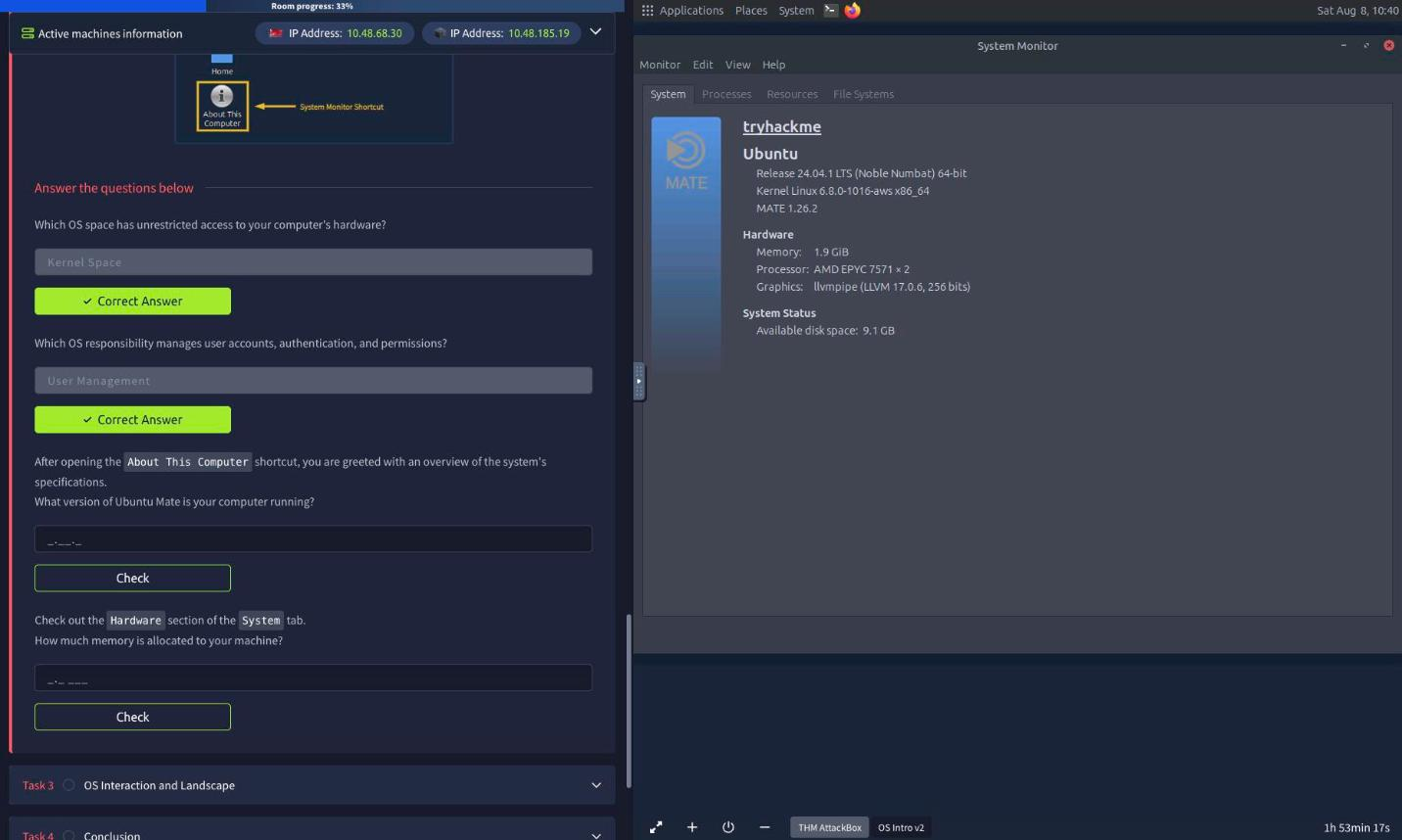
Reading straight off that panel:
- The Ubuntu MATE version is 1.26.2 (that is the MATE desktop release, shown right under the Ubuntu 24.04.1 LTS line).
- The memory allocated to the machine, from the Hardware section, is 1.9 GiB.
Small thing worth noticing while you are in there: the kernel is 6.8.0-1016-aws and the processor is an AMD EPYC. That “aws” in the kernel name and the EPYC silicon are the quiet tell that this “desktop” is a cloud VM streamed to your browser, not a machine under a desk. Same OS concepts, very different hardware underneath, which is exactly the point about the OS abstracting the hardware away.
Task 3: OS Interaction and Landscape
Task 3 moves from reading specs to interacting with the system, still through the MATE GUI. First, filesystems. System Monitor has a File Systems tab that lists every mounted device, its mount point, and its type. The root device, /dev/root, is listed with ext4 as its type. ext4 is the default Linux filesystem and the one you will see under the vast majority of Ubuntu boxes, so it is a good default to have memorised.
Next, users. The desktop has a Home shortcut, and opening the system’s /home in the file manager shows one directory per user account on the box. There are three of them, alex, guest, and ubuntu, so the answer to how many user directories exist is 3. This is /home doing its job as the place user management carves out a private space per account, and it is the first thing you enumerate on any Linux target because a user’s home is where the interesting files live.
Which the last question proves. You navigate into Alex’s home, open the Documents folder, and there is a note.txt. Opening it reveals a message and the flag:
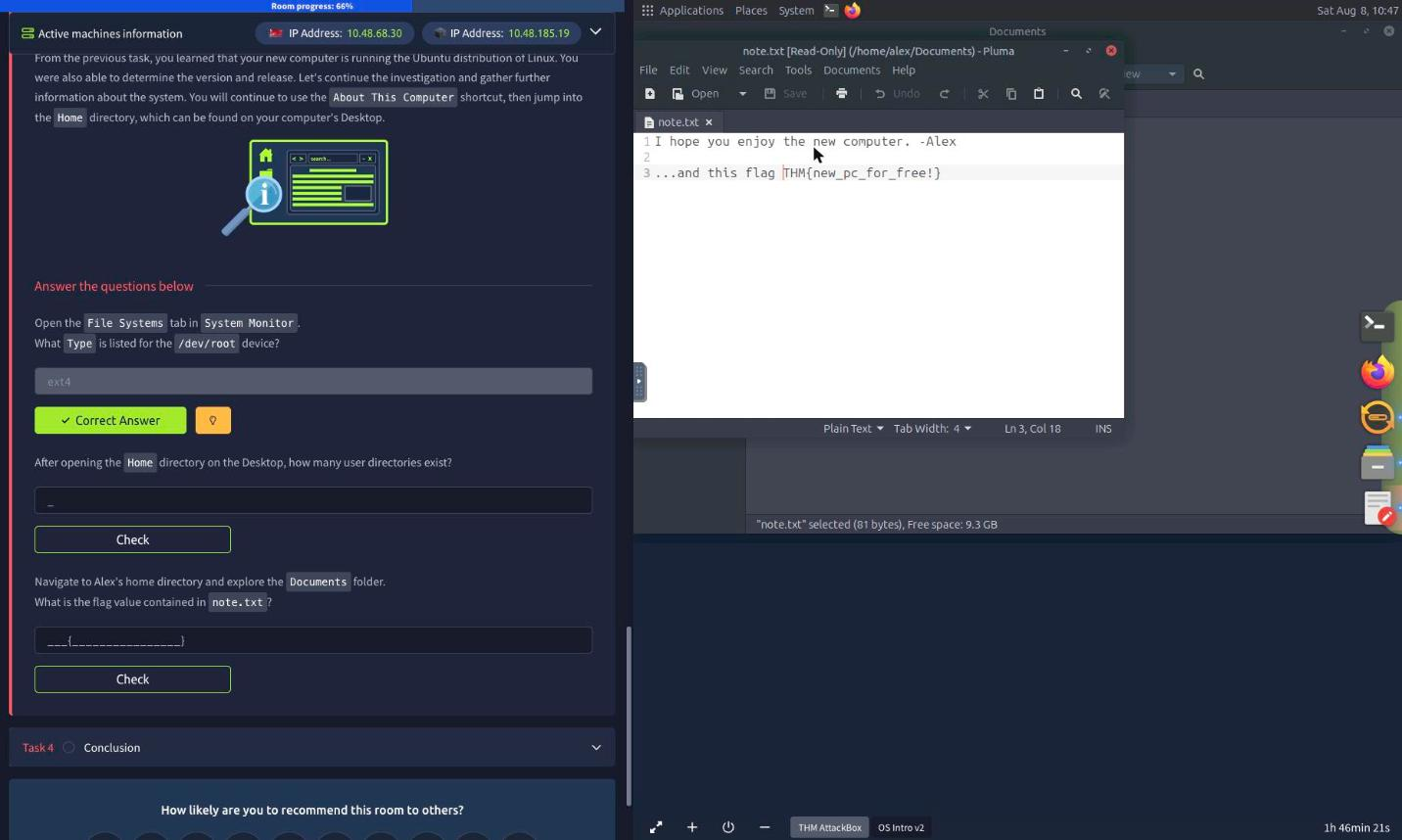
I hope you enjoy the new computer. -Alex …and this flag
THM{new_pc_for_free!}
There is the flag: THM{new_pc_for_free!}. The little narrative here, a note from Alex about a gifted computer, is the room’s running story, but the mechanical lesson is the one that matters: on a real engagement, half the wins are just reading files that a user left lying in their own home directory.
Why an intro room like this is worth your time
It is tempting to skip the fundamentals rooms once you can pop a shell, but the concepts in this one are the load-bearing ones. Kernel space versus user space is the entire premise of privilege escalation: you start with a user-space shell and you want kernel-level or root-level control, and everything you try is an attempt to cross that line. User management is why id, /etc/passwd, and sudo -l are the first commands you run after a foothold. Knowing that home directories live under /home, one per account, is why enumerating them is reflexive. And recognising ext4 versus something exotic tells you what recovery and forensics tooling will work if you ever have to carve a disk.
None of that is advanced, but all of it is assumed by the rooms that are. This room just makes the assumptions explicit, on a machine you can see, which is the right way to learn them.
Room summary
| Room | Operating Systems: Introduction (Pre Security path) |
| Category | Operating Systems, Fundamentals, Easy |
| Task 2 | unrestricted hardware access = Kernel Space; accounts and permissions = User Management; MATE version = 1.26.2; memory = 1.9 GiB |
| Task 3 | /dev/root type = ext4; user directories in Home = 3; flag in Alex’s note.txt = THM{new_pc_for_free!} |
| Machine | Ubuntu 24.04.1 LTS, kernel 6.8.0-aws, MATE 1.26.2, a cloud VM streamed to the browser |
Wrap-up
This is a quiet room, and that is fine. Not every session needs a CVE chain. The point is to be able to look at any Linux box and immediately place what you are seeing: this is user space, that boundary is the kernel, these are the accounts, that is the filesystem, and here is where a user hid something they should not have. Get those reflexes cheap here, on a friendly MATE desktop with a one-line note, so they are already automatic when the box is hostile and the note is a shadow hash.