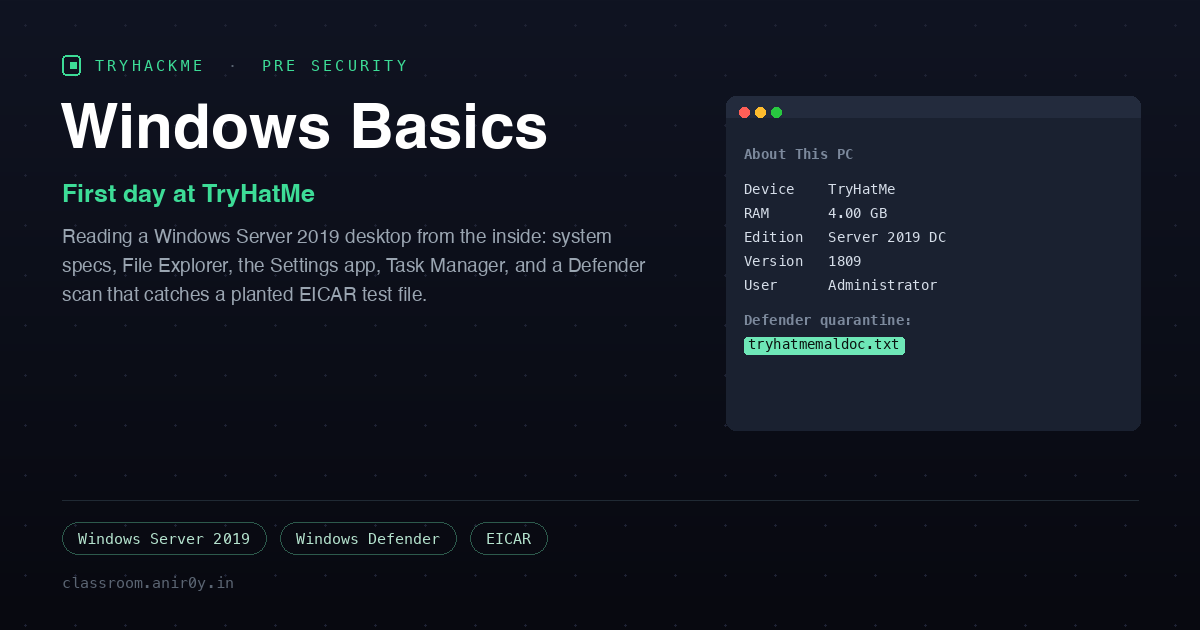
Windows Basics
This is the Windows counterpart to the Operating Systems Introduction room, and it follows the same idea: take the concepts and make you use them on a live machine instead of just reading about them. The framing is a first day at a company called TryHatMe. You log in to a Windows Server 2019 workstation, get to know the desktop and Start menu, read the machine’s specs, dig through onboarding folders, install an app, poke at Task Manager, and finish by running a Windows Security scan. Four tasks, all hands-on, and the last one has a genuinely instructive twist that the room did not intend for me.
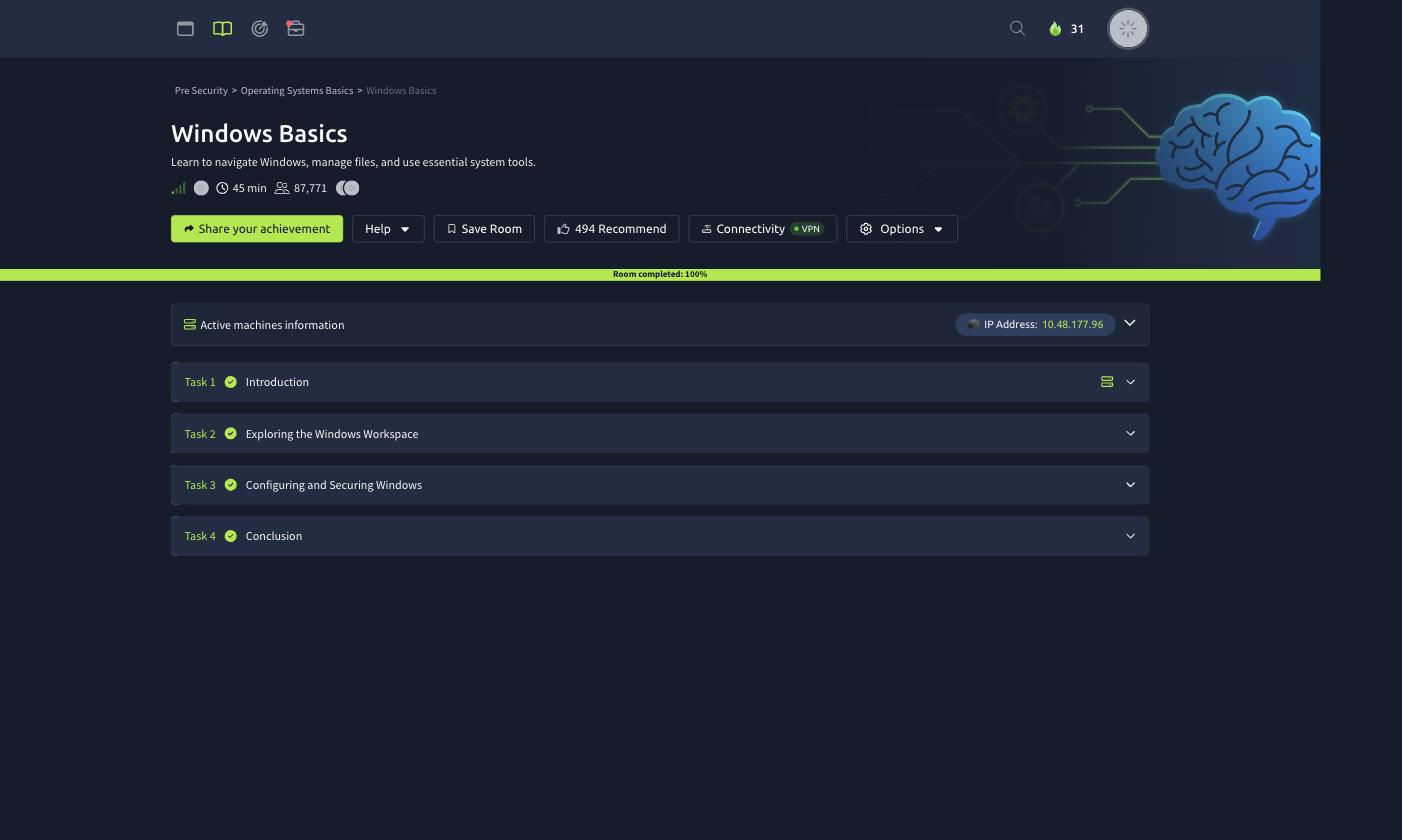
Task 2: Exploring the Windows Workspace
Before the desktop, there is authentication. The room walks through the three Windows account types, and the distinction matters for everything later: Guest is a restricted temporary account, Standard is for everyday use with no system-wide changes, and Administrator has full control. You are auto-logged in as Administrator here, which is why nothing later prompts you for elevation.
The first real work is reading the system. The desktop has an “About your PC” shortcut that opens the Settings app’s About page, and the questions fall straight out of it. The Device specifications section gives the device name and RAM, and scrolling to the Windows specifications section gives the OS version:
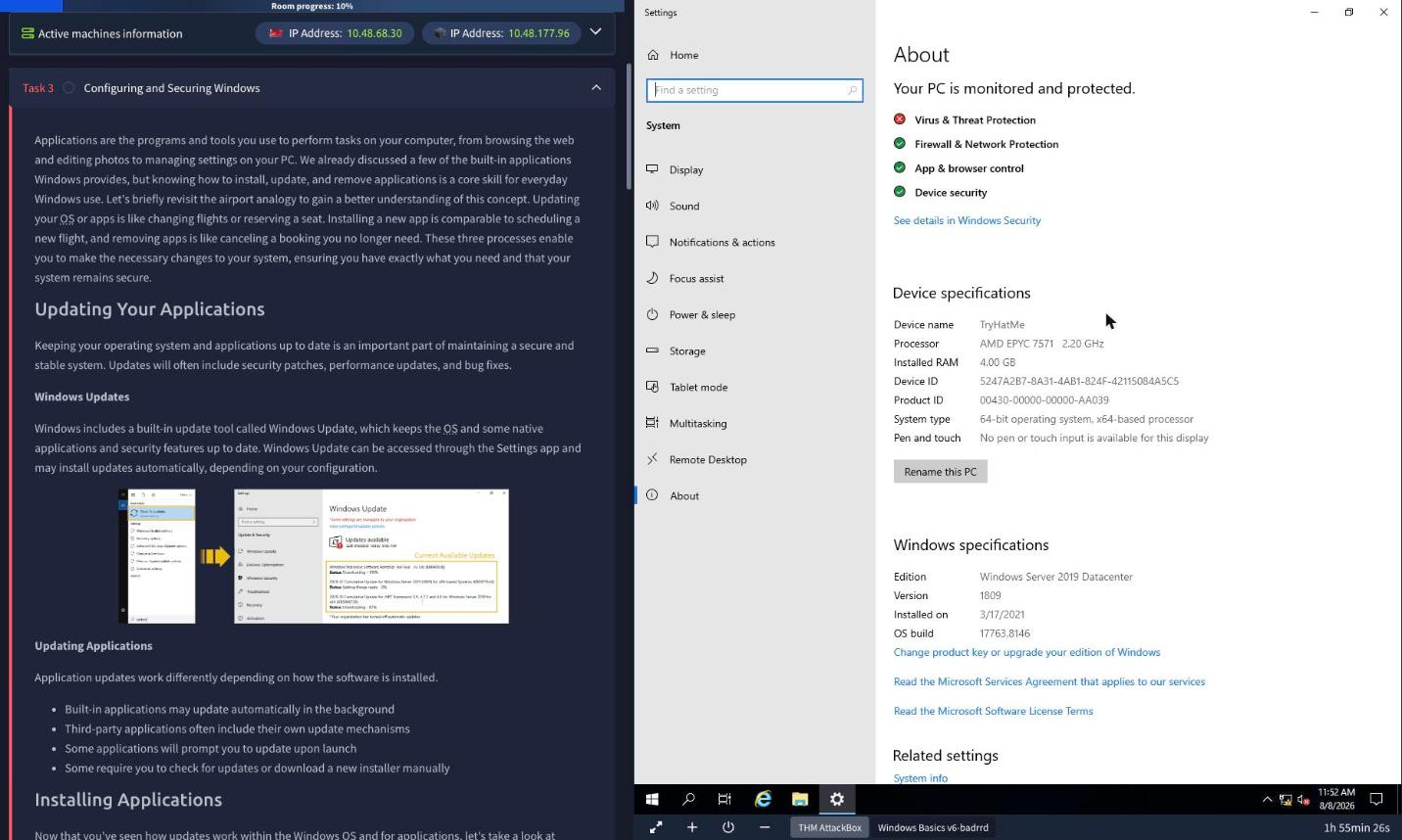
- Device name: TryHatMe
- Installed RAM: 4.00 GB
- Windows Server 2019 Datacenter version: 1809
Worth noticing while you are there: the processor is an AMD EPYC and the machine is a Windows Server 2019 Datacenter build. This is a cloud VM streamed into the browser, the same abstraction lesson from the Linux room, just wearing a different OS.
Next, File Explorer. Windows lays files out in a hierarchical folder tree, and the room has you open the TryHatMe Onboarding folder on the Desktop. Its full path is C:\Users\Administrator\Desktop\TryHatMe Onboarding, and inside it is a Welcome.txt. Open it and the flag is right there in the note:
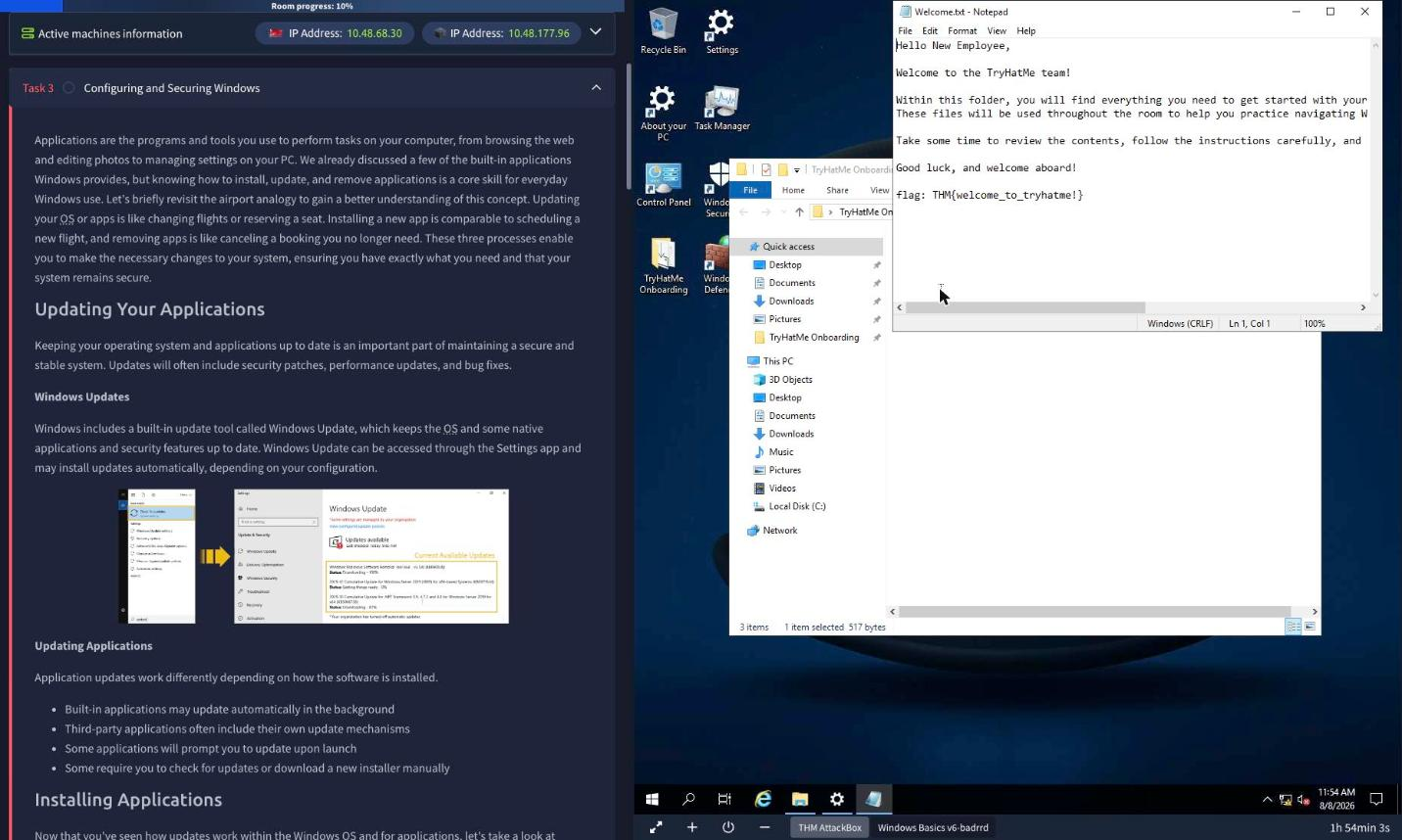
flag:
THM{welcome_to_tryhatme!}
Task 3: Configuring and Securing Windows
Task 3 is about installing, configuring, and securing, and it front-loads the practical. Inside the onboarding folder is an installer, TryHatMeWelcome. Double-click it, click through the Inno Setup wizard (destination, tasks, install), and leave “Launch TryHatMe Onboarding” ticked on the final page. The launched app pops a dialog with the next flag:
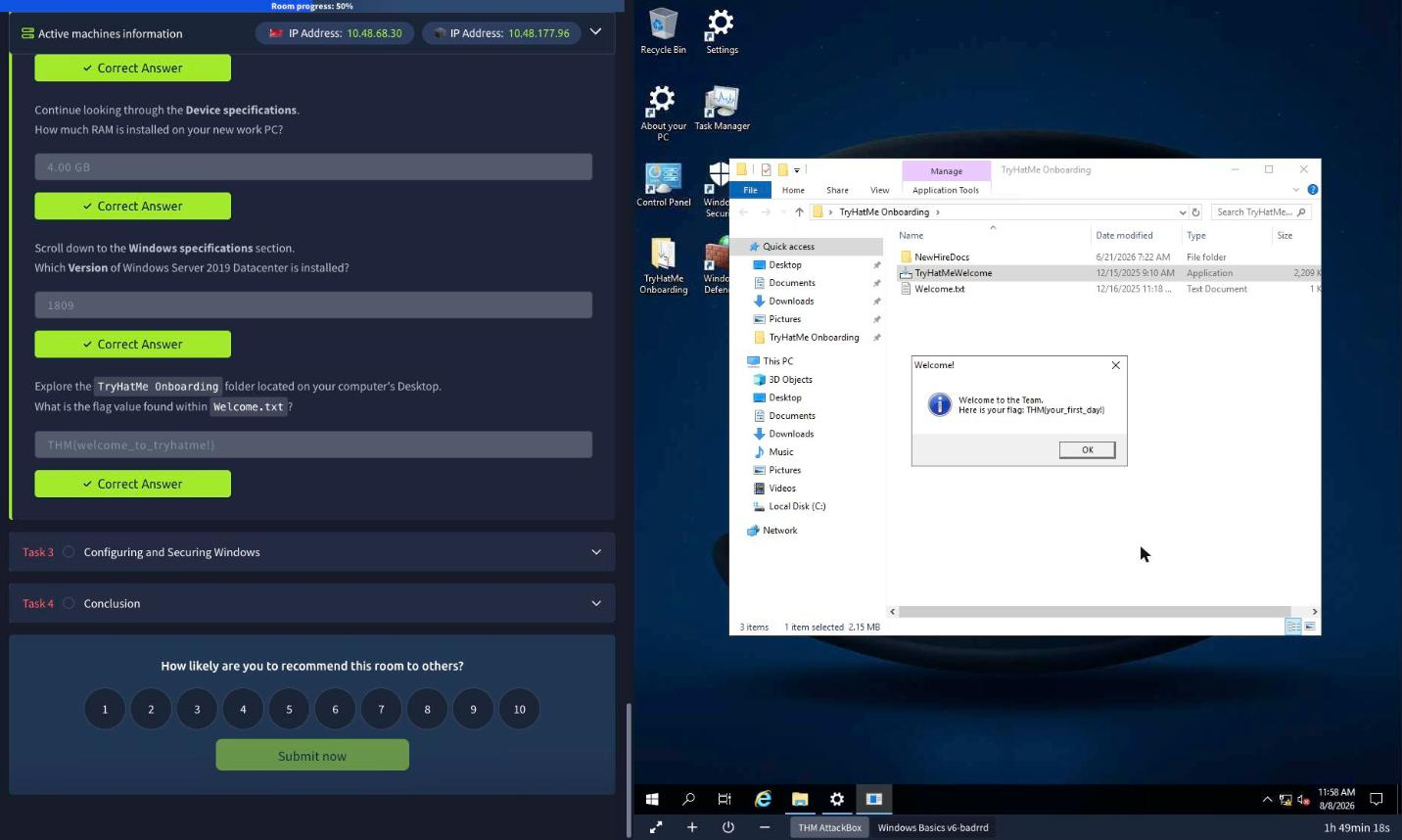
Here is your flag:
THM{your_first_day!}
Then two quick configuration questions. The Settings app has a Time & Language section, and its Region tab shows the machine’s country. The Windows navigation was the flakiest part of the streamed desktop for me, so the reliable route was Settings search or the Region tab directly:
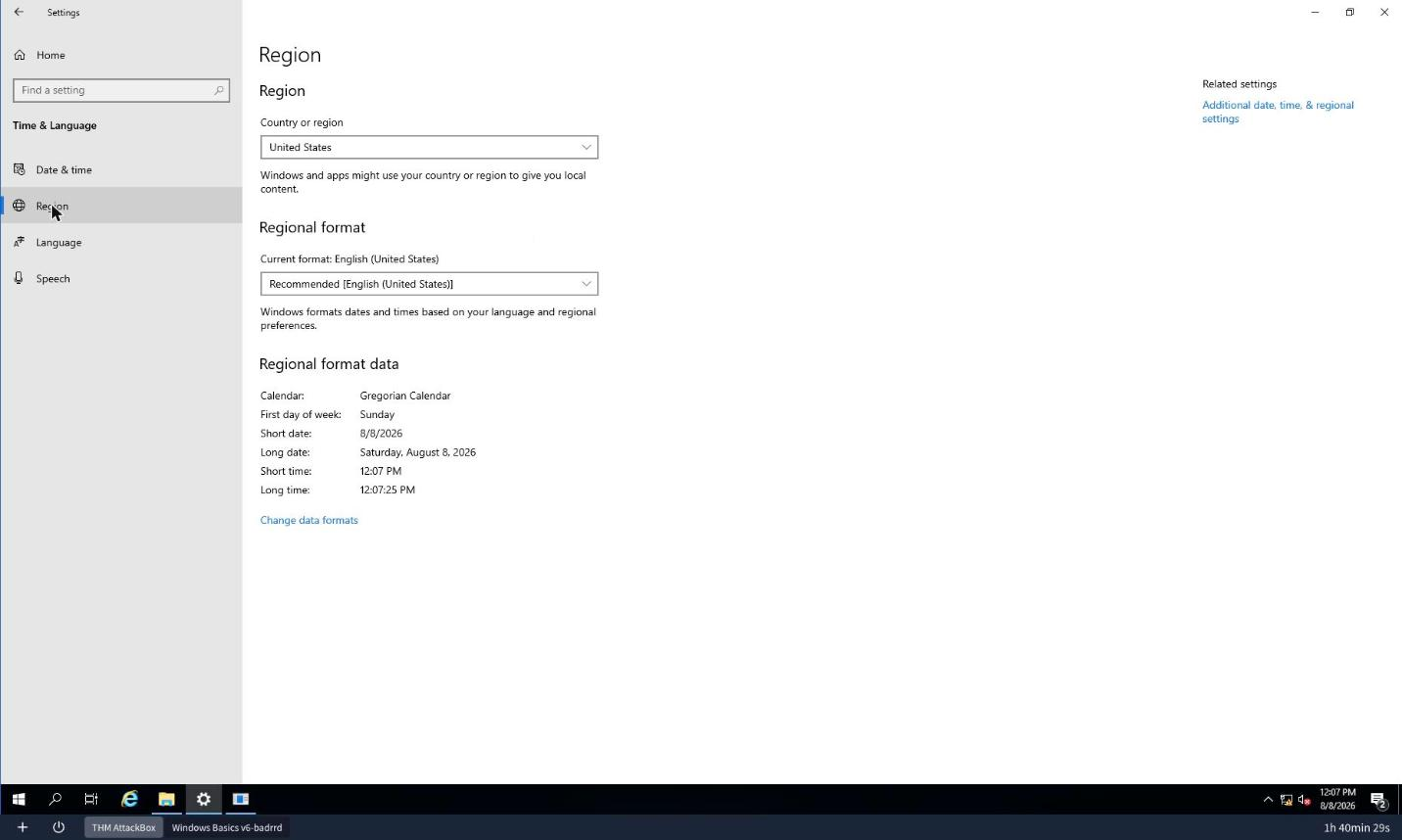
- Country or region: United States
Task Manager is next. Open it from the Desktop shortcut and switch to the Users tab, which lists who is logged in. On a workstation you have signed into yourself this is obvious, but on a real target it is one of the first things you check:
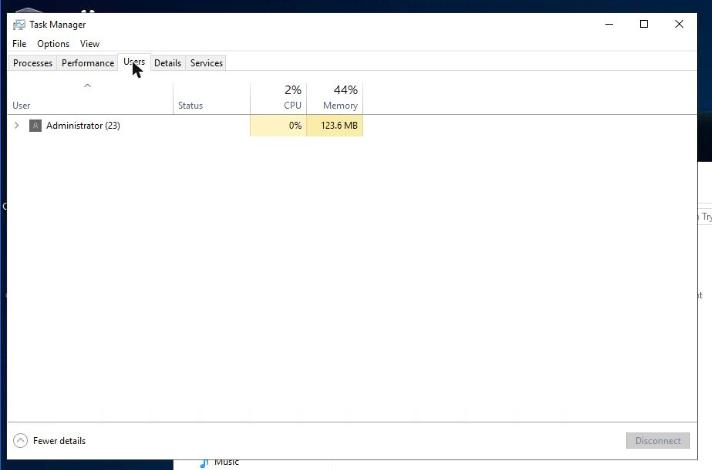
- Logged-in account: Administrator
The EICAR scan, and the twist
The final question is the interesting one. The room has you open Windows Security, go to Virus and threat protection, choose Scan options, pick Custom scan, and target the onboarding folder. The intended outcome is that Defender finds a harmless EICAR test file, you click the detection, select See details, and read the file name from the Affected items section. EICAR is a standard 68-byte string that every antivirus is built to flag on sight, exactly so people can test detection without real malware.
On my instance that flow refused to complete, and figuring out why is the actual lesson. My custom scan of the onboarding folder returned 0 threats, 3 files scanned, and File Explorer confirmed the NewHireDocs subfolder held only a clean EmployeeAgreement.txt. Yet the Virus and threat protection page reported a scan from minutes earlier that had found 1 threat. The Threat history link only opens go.microsoft.com, which the isolated lab network cannot reach.
The explanation: the machine ships with a scheduled task literally named “Create EICAR Test File” that drops the test file, and Defender had already detected and quarantined it before I ran my own scan. The file was gone from disk, which is why my custom scan found nothing. So I recovered the name straight from the quarantine store with MpCmdRun.exe:
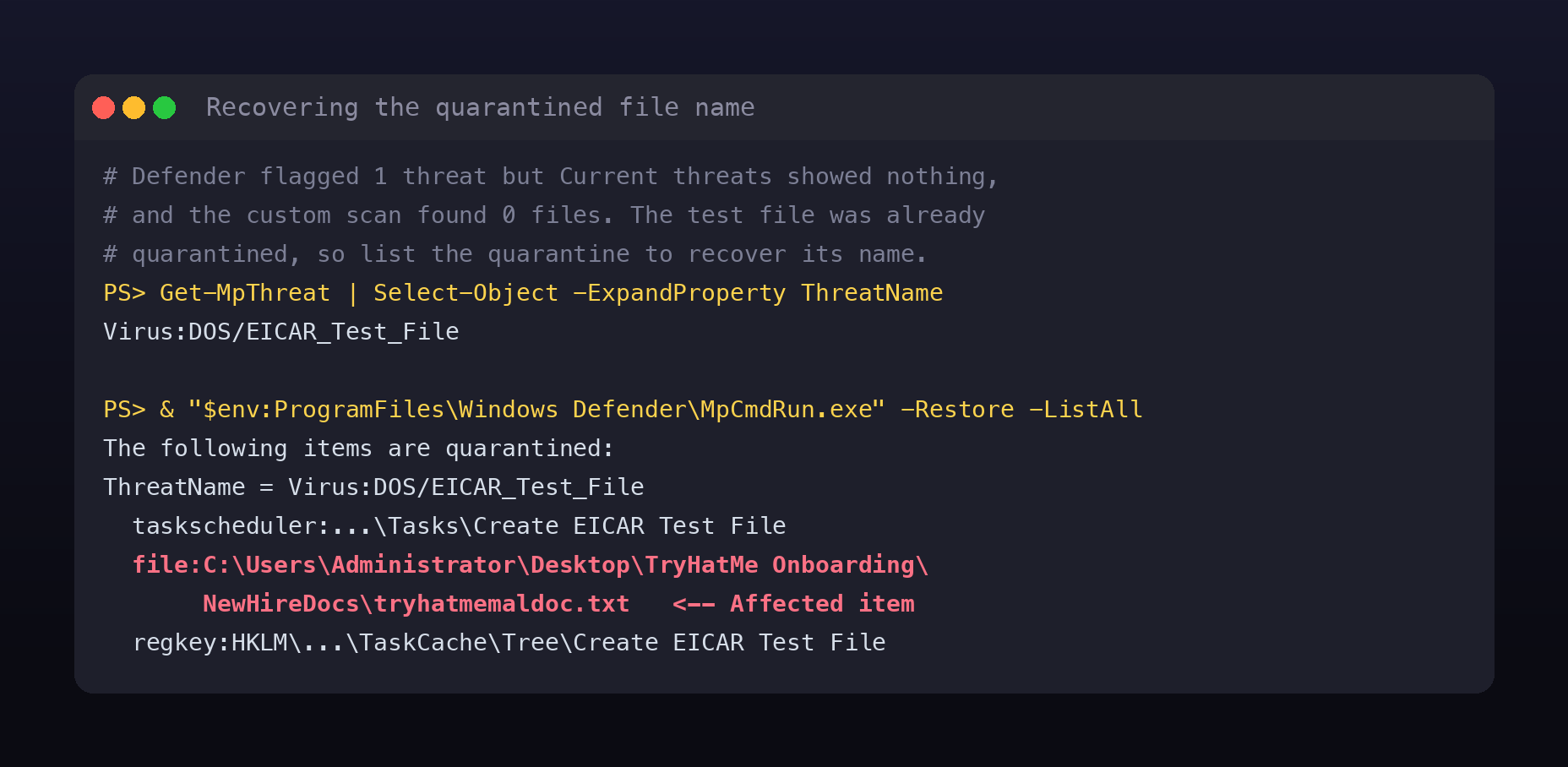
# the ThreatName confirms what was caught
Get-MpThreat | Select-Object -ExpandProperty ThreatName
# Virus:DOS/EICAR_Test_File

# list the quarantine to recover the original path and file name
& "$env:ProgramFiles\Windows Defender\MpCmdRun.exe" -Restore -ListAll
The -Restore -ListAll output lists every quarantined resource for the threat: the scheduled task, two registry keys under TaskCache, and the file itself:
file:
C:\Users\Administrator\Desktop\TryHatMe Onboarding\NewHireDocs\tryhatmemaldoc.txt
There is the Affected items file name: tryhatmemaldoc.txt. The room’s hint even confirms the shape, asking you to include the extension, and the answer field is sized for a fourteen-character name plus a three-character extension, which fits exactly.
Why the twist is worth more than the flag
The intended question wanted you to read a name off a dialog. What the instance actually taught is more useful. When on-demand real-time protection is off but a scheduled task or a prior scan has already remediated a threat, the current Virus and threat protection view can show you nothing, because it reflects only the most recent scan. The evidence has not disappeared, it has moved into the quarantine store, and MpCmdRun.exe -Restore -ListAll (or Get-MpThreatDetection) is how you get it back. That is a real triage skill: when the GUI says “no current threats” but the history says otherwise, go to the command line and read the quarantine directly. It also shows how EICAR persistence can be wired to a scheduled task and registry keys, not just a loose file, which is a tidy miniature of how real malware installs itself.
Room summary
| Room | Windows Basics (Pre Security path) |
| Category | Operating Systems, Fundamentals, Easy |
| Machine | Windows Server 2019 Datacenter, version 1809, an AMD EPYC cloud VM |
| Task 2 | device name = TryHatMe; RAM = 4.00 GB; version = 1809; Welcome.txt flag = THM{welcome_to_tryhatme!} |
| Task 3 | installer flag = THM{your_first_day!}; region = United States; logged-in account = Administrator; EICAR affected item = tryhatmemaldoc.txt |
Wrap-up
Like its Linux sibling, this room is quiet on the surface and load-bearing underneath. Account types are the basis of privilege escalation, the About page and Task Manager are your first-look enumeration on any Windows box, and File Explorer paths are how you navigate a foothold. The EICAR question turned into an unplanned lesson in Defender’s quarantine, which is exactly the kind of “the GUI is lying to me, go to the CLI” moment you want to internalise early. Get comfortable reading a Windows machine here, on a friendly onboarding desktop, so it is second nature when the box is hostile.